
Printer test page
Print one sheet to check a new cartridge, look for streaks, or see how clearly your printer handles small text.
Choose Black & White or Grayscale in the print dialog. Select US Letter and print one copy at 100%.
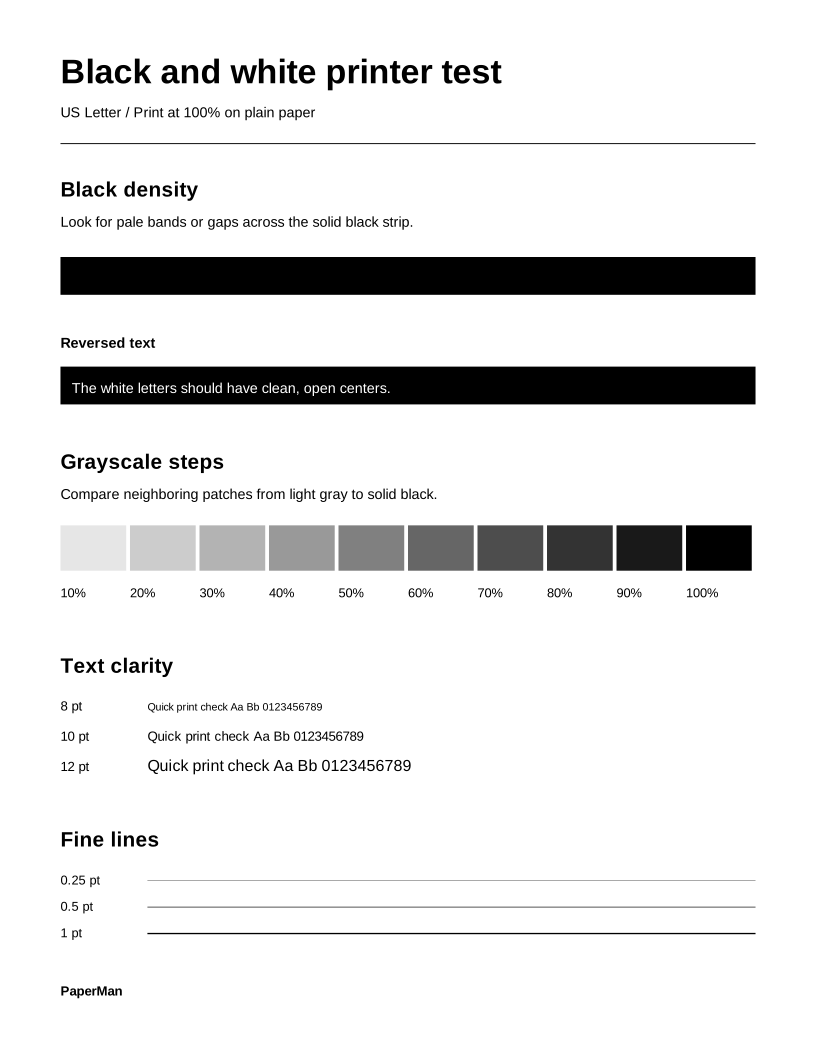
How to read your printout
Inspect the black strip
Look across the solid black strip for pale bands. In the white lettering below it, the small openings in letters like e and a should stay clear.
Compare the gray steps
Read from 10% to 100%. The patches should get progressively darker. Look for neighboring steps that merge into a single shade.
Look closely at text and lines
Compare the 8, 10 and 12 pt samples. Look for broken letters, doubled edges or gaps that repeat in the same place along the three thin rules.
Printer test page FAQ
Why did the color test print in gray?
First check the preview for four labeled color strips. Then select your color printer and choose Color in its print settings. Some print dialogs keep the black-and-white setting from the previous job.
One color is missing or streaky. What should I check next?
On an inkjet, run the nozzle check in your printer’s maintenance menu. Compare that pattern with the example in your printer manual to decide whether to run a cleaning cycle.
Does the black and white test use only my black cartridge?
The PDF contains only black and gray marks. Your printer controls which cartridges it uses. Select “Black ink only” if your printer offers that option.
My sheet came out completely blank. How can I narrow it down?
Try the printer’s own test or status page from its control panel. If that prints, check which printer and paper settings you selected on your device. If it also comes out blank, start with the ink or toner checks in your printer manual.